Working with pickets
Five kinds of picket, one gesture to make them, and every knob you can turn afterwards — creating, styling, sorting and combining the containers your desktop is built from.
Creating a picket
Draw it. Press the left mouse button on empty desktop space and drag out a rectangle — releasing creates a picket exactly there. A chip by the cursor always asks first: Create picket here for an empty rectangle, or Create picket with N items when real icons lie inside it. Click it to group them. The chip never takes the focus from the desktop, so your selection stays selected and you can still drag it; a click elsewhere, Esc or six seconds without a click dismiss it. Drags that start on an icon move the icon as usual and never trigger this. The drag looks exactly like an ordinary marquee selection, so if the chip gets in your way, switch it off in Settings → Desktop behavior → “Drag on the desktop to draw a picket”: a drag is then only a selection, and the tray's New picket and the menus below still create pickets.
Your first grouping asks first. Grouping a desktop file keeps it where it is on disk but hides its desktop icon, so the picket can draw it — and while it is in a picket, the file does not show in File Explorer's Desktop folder or in Open and Save dialogs (see the FAQ for the ways around that). The very first time anything would hide one of your files, Picketdesk says so in a box titled Before Picketdesk groups your files and asks Group N files now? before anything is filed. No leaves every file as it was; Yes is never asked again. When you draw around icons, that box follows your click on the “Create picket with N items” chip, once. A smart picket, a filter or an imported backup cannot ask per file, so the first hide one of them makes is explained right after, instead.
If your pickets are hidden (the desktop double-click toggle) or Focus mode is on and you drew from bare desktop, the drawing is not silently dropped: a popup names the mode — “Your pickets are hidden (desktop double-click toggles this). Show them and create this picket?” or the Focus-mode equivalent — and on Yes the rectangle you drew still becomes your picket. Dismissing keeps the mode and drops the drawing. The same goes for a monitor whose pickets you hid on their own (Ctrl+Shift+1…4, or the tray's Monitors menu): drawing there asks first, and Yes shows that monitor's pickets, so the new picket and the icons it groups are never born hidden. Moving an icon is still just moving an icon under any of these modes: dragging one asks nothing and leaves the mode alone.
Or right-click a picket's header or background:
- New picket — opens with the name ready to type.
- Add files from anywhere… — see collections below.
- New portal picket (mirror a folder)… — pick a folder.
- New smart picket (live search) — the six presets: Images · Documents · Archives · Screenshots · New or changed today · New or changed this week. Or type any query in a picket's search and click ★ to save it as a smart picket.
- New action zone — Drop to ZIP · Drop to date-stamp.
Custom command zones (your own
%ftemplate) are created in Settings; the form keeps what you typed until a zone is actually created, and Create zone is greyed out while one is being made, so a double-click creates one zone, not two.
The tray menu also offers New picket and its own New smart picket ▸ submenu, with the same six presets.
The title bar
- Chevron (▾/▸) on the left shows and toggles the roll-up state.
- Double-click the name → rename inline. All languages and Unicode work.
- Double-click the empty bar → roll up / down (collapse to just the title bar). Dragging a rolled-up picket taller expands it again automatically. Hovering the bar of a rolled-up picket for half a second unrolls it temporarily — glance, grab a file, and it re-collapses when the pointer leaves; nothing is saved.
- The item count shows next to the name; 📌 = pinned, 🔒 = private. Hover the count for the picket's storage footprint (“11 items · 3.2 GB”).
- Close (✕) removes the picket; its files are shown again as ordinary desktop icons right where they are.
- Drag anywhere on the bar to move; the picket snaps when released nearby — to monitor edges, and to the other pickets on that monitor: it butts up against a neighbour with one consistent gap, or lines its left/right (or top/bottom) edge up with one, whichever is closest to where you let go. A screen edge wins a tie. Reach is 20 px, scaled for your display — drop further out and the picket stays exactly where you put it. Lining up is a column gesture and reaches as far as the screen does: a picket dropped at the bottom lines its left edge up with one at the top. It never lines up with a picket it is overlapping, so a drop a few pixels off a neighbour stays where you dropped it instead of settling exactly on top of it. A picket let go of with its title bar out of reach — behind the taskbar, above the screen, or with 80 screen pixels or less left on the screen's side — moves just far enough to bring the bar's full height back into the part of the screen the taskbar leaves free and at least 96 px of its width (scaled for your display) back on the screen, so it can always be dragged again. A grip glyph marks the resize corner.
- Scrolling: when items need more rows than fit, the grid scrolls in place — mouse-wheel over it or drag the scrollbar. Icons and thumbnails load near the visible rows, search results included, and the most recent request is drawn first: after a fast scroll, a page turn or a new search, the icons on screen fill in before the ones you moved past. Every file on the current page remains available to selection and keyboard navigation, including files whose images have not loaded yet.
- Files with their own icon: cursors, ClickOnce
applications (
.appref-ms), management consoles (.msc) and the other types that keep an icon inside each file, not one per type, are drawn with that file's own icon, as on the desktop. - Icons that live on another machine: a shortcut
(
.url,.lnk, an Explorer command file.scf) or folder whose custom icon points at a network location is shown with its plain type icon in a portal, in recents and in search results — anywhere Picketdesk lists a file your desktop is not itself showing. Fetching that icon would open a connection to that machine on your behalf just to draw a picture, so Picketdesk does not. A shortcut to a local file or folder is checked through to that target's own icon too, and a folder Windows treats as a shortcut or special location there always shows the plain folder icon. Libraries, search connectors, ClickOnce application references and.symlinkshortcuts pick their icon in a way Picketdesk cannot inspect, so there they always show their type icon. Items on your real desktop keep their icons, and so do files you added with Add files from anywhere… (the Windows file dialog you picked them in drew the same icon). A network folder you added yourself is trusted. - Display cap, and pages: a picket draws at most 1,000 items at a time, including inside portal subfolders. Subfolders also use the portal’s sort direction, thumbnail setting and annotation badges. That is a drawing limit, not a storage one — a regular picket holds as many files as you file into it. Past the cap the picket tells you at the bottom (“Showing 1–1,000 of 1,432”) instead of quietly handing you a shorter list, and More › next to it draws the following 1,000 (‹ Back returns). The count is exact to 5,000 and shows as 5,000+ above that, and so is the paging — past 5,000 files, search is the way in. A page is the working set: a selection belongs to the page you can see (turning the page drops it), Select all .ext items picks matches on the page the item you clicked is on, and dragging tiles to reorder rearranges that page while the pages in front of and behind it stay exactly as they were. Smart pickets do not page: a smart picket hides exactly what it draws, so a second page would leave those files showing on the desktop as well — narrow the search instead.
The picket menu
Right-click the header or background for the native menu (it never clips at the picket's edge):
Search this picket · New picket · Add files from anywhere… · New portal picket (mirror a folder)… · New smart picket (live search) ▸ · New action zone ▸ · Explorer menu… (the standard desktop menu: New ▸, Paste, Refresh, display settings, Personalize) · Organize desktop now (apply rules) · Preview organize (dry run)… · Fit picket to content · Align all pickets to grid · Rename picket · Pin (ignore hide-all) · Private (Windows Hello) · Personalize picket… · Sort ▸ · Automation… (regular pickets) · Merge into ▸ (regular, non-private, when there is a regular picket to merge into) · Subtab under ▸ (non-private, when there is a picket to host it) · Split tabs into own pickets (only on a picket that has tabs) · Export picket template… · Apply picket template… · Close picket (not while a private picket is locked) · Settings…
Ctrl+Z would have gone to is the one that just
closed. A closed tab goes back into whichever window holds
its old host now — or gets a window of its own if that host is
gone — so an undo never leaves a picket that nothing draws.
Closing a picket holding 20 items or more asks first — for a
smart picket, that counts the desktop files its search was hiding,
which come back into empty cells as soon as it closes.
Collections — files from anywhere
Add files from anywhere… (picket menu) points a picket at files that do not live on your desktop. The files stay exactly where they are on disk — nothing is moved, copied or hidden — and the picket simply shows them. It sits next to the portal entry in the menu because both are ways of holding something that isn't a desktop item. Dragging one to another regular picket files it there and leaves the file in its folder; a smart picket lists desktop files only, so a drop there leaves it where it was and says so. A portal picket is a folder, so a drop there moves the file into that folder like any other drop (Ctrl+Z moves it back), and an action zone runs its pipeline on it.
The picker takes a whole selection at once — Ctrl+click, Shift+click, Ctrl+A — so a handful of files is one dialog, not one dialog each. The batch is a single Ctrl+Z step that takes them all back out of the picket; since nothing moved on disk, there is nothing to put back.
A folder that sits on your desktop counts as “not on your desktop” here. Only a file with its own desktop icon is ever hidden, because hiding exists for one reason — to stop that icon appearing twice, once in the picket and once underneath it. A file one folder down has no icon to suppress, so it keeps its place, and the self-clean timer leaves it alone too. When you do pick a desktop icon, it disappears from the wallpaper in the same gesture rather than a couple of seconds later.
Tags, notes and reminders you attach to a collection item are kept like any other. If a collection item is deleted from disk elsewhere, the picket no longer shows it the next time it refreshes, and Picketdesk drops it from the picket at its next check. Picketdesk does not watch that other folder, so until something makes the picket refresh, its tile can stay. A change on your desktop re-checks these files at most once a minute, since it says nothing about a file in another folder.
Appearance — “Personalize picket…”
Explore the visual personalization examples to compare colours, wallpaper matching, themes, frames and labels.
Right-click the title bar → Personalize picket…. The editor stays open while you compare the desktop. Its live preview shows the selected colors, opacity, frame and labels over a local wallpaper thumbnail, or a sample backdrop if unavailable.
Changes apply live. Undo and Redo include one-step slider drags, identity, light/dark mode and batch edits. Revert this session restores each affected picket's opening appearance; it does not undo file operations, library/default changes or Automation. Done, Escape and native window close save pending appearance changes; clicking elsewhere keeps the editor open. Delayed background refreshes cannot replace a newer appearance edit or undo. If a page load, snapshot restore or backup import replaces the workspace, the editor asks you to close and reopen Personalize. Its pending edits, Undo, Redo, Revert and Automation changes cannot affect a picket on the replacement page.
- Looks: complete themes — Minimal, Paper, Midnight, Meadow, Slate, Graphite, Ocean, Plum, Dusk, Ember, Aurora, Mist and Sand. Each coordinates color, opacity, frame and label preferences. The preview says Customized when no complete theme matches. My looks saves named appearances, and Use this look for new pickets sets a default without changing your existing pickets. Star saved looks to keep them first. Manage offers Rename, Duplicate, Update this look and Remove. Update and removal ask for confirmation; updating captures the visible appearance and preserves the name and favorite. Neither action changes existing pickets, defaults or configured light/dark pairs.
- Light / dark pair: in Looks, choose two appearances from built-in themes or My looks. Follow Windows follows Windows' app-color preference without rewriting your workspace. Light and Dark force a side; Manual restores your last custom look. Editing colors, frame or labels switches to Manual, starting from the visible look. Identity edits keep the current mode. The pair retains copies, so library updates cannot silently change it.
- Colors: swatches, a custom picker, Blend a
second color for gradients, Automatic title bar
color or a custom header, and background/header opacity
sliders from 15–100%. A color in an opened file that is not a
six-digit
#rrggbbvalue loads as the default instead, so it can never block a later edit. Applying a picket template with such a color keeps the picket's own color instead. - Frame: Picket identity offers an optional title-bar icon and a slim, custom-colored Accent stripe. These stay with the picket when you apply or copy looks; None and the stripe toggle remove them. Corners (Square / Soft / Round), Border (None / Hairline / Tinted / Glow), Surface finish (Flat / Grain / Sheen), and Title bar (Bar / Line / On interaction). The interaction option reveals the bar on hover or keyboard focus; a collapsed picket always keeps its bar.
- Labels: Filename labels (Always visible / On interaction / Hidden). Interaction reveals names on hover, focus or selection without shifting icons; renaming works in every mode. Text color (Automatic / Light / Dark) and Backing behind filenames improve readability on busy wallpapers. Icon effect (Original / Muted / Tinted / Blend), Calm badges, Fade older items and portal-only Show thumbnails are here too. A reminder that is due, or due within 15 minutes, stays visible even with Calm badges. Icon size continues to follow Explorer, not the theme.
Apply to: This picket · live, Selected pickets, or All pickets on this page. Select destinations and press Apply look to N pickets to copy appearance. Keep individual colors preserves each destination's background, gradient and title-bar colors. Batch Undo restores their distinct originals; a destination deleted while the editor is open is skipped, and the rest are still restored. This never copies identity icons/stripes, contents, positions, sorting or automation policies. Each destination keeps its configured light/dark pair but switches to Manual. Copying, saving, exporting and setting a default capture the visible appearance, not the pair.
Share current look… exports a
.picket-look.json containing appearance only — no file
paths, picket title, identity icon/stripe, light/dark pair, contents,
positions or rules. Workspace backups and picket templates do retain
identity and pairs. Existing files are
not overwritten. Import look… adds it to My looks;
select the imported card to apply it.
Match my wallpaper samples the current picket's monitor locally and offers Subtle, Balanced and Colorful previews. Nothing is uploaded and no look is applied until you choose one. Only a picture stored on this PC is read: a wallpaper on a network or mapped drive, or an online-only OneDrive picture, is refused with a message instead of being fetched.
Self-clean has its own screen: right-click a regular picket → Automation…, or use the editor's Automation… link (shown, like the menu entry, only for a regular picket — a smart picket, portal or zone has no self-clean). Enable self-clean, choose 1–3,650 days and Recycle Bin or Folder, review the summary and press Save automation. These changes are not live. All controls, including Enable self-clean, stay disabled until the save and its confirmation finish. You can then change and save the policy again. See the self-clean safety rules.
Export picket template… (picket menu) saves the
picket's style and behavior — not its files — as a shareable
.picketarea file. What describes your desktop is left behind:
no listing of your files, no manual order, no folder mirror or self-clean
destination, no window position. What you typed yourself does travel,
because it is the point of sharing one — the title, the smart search, and
the action pipeline including any move: destination in it. Read
those before you hand the file to a stranger. Not every step survives
Apply, though: only the built-in zip,
datestamp and toast: steps are applied. A
move: step and every shell-command step are dropped — a
stranger's file chose that destination or command, not you — and the
toast names each one among the parts “removed for safety”; add them back
yourself if they are really yours. Export never replaces a
file: when the folder already holds one of that name, the new one is
numbered (Work (2).picketarea), and the toast names the
file it wrote. Apply picket template…
reads one back into this picket; it changes the picket you opened
the menu on rather than creating another one. Applied to a picket that
already holds items, a template's smart search and action are left out —
they would turn it into a smart picket or action zone and put every item
back on the desktop — and the toast lists them with the other removed
parts. Apply such a template to an empty picket instead. A template
never gives a picket a second kind either: a smart picket takes its
smart search but not its action, an action zone its action but not its
smart search, and a portal neither; an empty regular picket given a
template carrying both takes only the smart search (its action is named
in the toast). A smart search that filters nothing
(-g alone) is left out too, as it is when you type one.
Sorting
Manual (drag to arrange) · By name · By type · By date · By size · By usage (most opened) — Picketdesk counts every open. A new picket starts in Manual. In Manual you drag icons to arrange them; dragging onto another icon in any other mode switches to Manual automatically. Folders group first in the automatic modes. Releasing a drag anywhere that is not a drop target — the title bar, a breadcrumb, a banner — does nothing at all, so a slip can no longer replace your sort.
Reverse order, at the bottom of the Sort submenu, flips
whichever key you picked: oldest first for a “to archive” picket,
smallest first, Z–A, least used. Folders still group first — only the
order within them turns around — and it is greyed out under Manual,
which is your own arrangement and has no direction. In the palette it is
a suffix: sort archive by date asc,
sort photos by name desc. The direction travels with an
exported .picketarea template, because it is half of the
sort: a template made from a smallest-first picket applies as
smallest-first, and one that carries no direction hands its key over
un-reversed rather than leaving yours on it.
Merging and tabs
Two deliberately different operations, named apart in the menu:
- Merge into ▸ — moves this picket's icons into the target and this picket stops existing. Filter rules that were filing into it file into the target from then on. Offered for regular pickets only, and only into another regular picket: a smart picket, an action zone or a portal holds no icons of its own to take them, and a private picket is never offered (see Pinning, private, roll-up).
- Subtab under ▸ — keeps both pickets and only draws this one inside the other. The host grows a tab bar, and drops, search, ordering and menus all operate on the active tab.
Split tabs into own pickets undoes a subtab. Closing a host first releases its tabs as their own pickets, so nothing is ever taken down with it.
Right-click a tab in the strip for its own small menu — Rename tab · Restore as separate picket · Close picket — so a merged picket can be reached without splitting every tab out first.
A tab is also a drop target: drag items onto another tab and they are filed into that picket, the drag route to “Move to picket”. Ctrl+Z takes it back. A tab that lists its own items — a portal, a smart picket, an action zone — cannot hold files, and says so rather than swallowing the drop.
Pinning, private, roll-up
- Pinned pickets ignore the hide-all gesture and Focus mode — your anchors stay put.
- Private pickets show a 🔒 panel until unlocked with
Windows Hello / PIN. A cancelled or failed
verification keeps it locked and says so; on a PC where Windows
Hello is not set up, the message points you to turning Private off
from the picket's menu. The header padlock tracks the
state — 🔒 locked, 🔓 once unlocked — and clicking the open
padlock locks it again straight away. Turning Private off and back
on re-locks it too. A locked private picket cannot be closed:
closing un-hides every file it holds, so behind the shut padlock
the header has no ✕ and the picket menu no Close
picket — unlock it first.
Closing a private picket always asks for a fresh Windows
Hello verification, even if it is already unlocked; the
prompt says it is for closing the picket and putting its files
back on the desktop.
Cancellation, failure or an unavailable prompt leaves the picket
open and its files untouched. A page change while you answer
cancels the close; close it again on the current page.
Unchecking Private (Windows Hello) in the picket
menu asks for Windows Hello as well, so the menu entry is not a way
around the padlock — a refused or cancelled prompt leaves the picket
private and says so. Ticking it on never prompts, and
applying a
.picketareatemplate can only add privacy, never clear it. Neither can loading a page, restoring a snapshot or importing a backup that was saved before you ticked Private — even one a time-of-day rule or a virtual-desktop binding loads with nobody watching, and even after a page that does not have the picket at all: this PC remembers which pickets it has seen private, so the picket stays private, in its own window, until you untick it with Windows Hello. A private picket also keeps its own window: Merge into ▸ and Subtab under ▸ are not offered for it, because inside another picket's window its items would be drawn behind that picket's padlock, not its own. Untick Private first. If a picket becomes a subtab while a privacy change is pending, turning Private on is refused: restore the tab as its own picket first. A template applied after that merge keeps its styling changes but reports that its Private setting was withheld. Picketdesk never puts a tab into a private picket, since a tab inside it would sit behind its padlock while the tab itself said public: Subtab under ▸ never offers a private picket as the host, and ticking Private on a picket that has tabs is refused until you split them into own pickets (a template withholds Private the same way). Nor does a merge move icons into a private picket: Merge into ▸ never offers one, from any picket, and a merge into one asked for any other way is refused and changes nothing. To merge into it, untick Private on it first. A private picket that still holds an ordinary picket as a tab — from a workspace an older build wrote, or because a page, snapshot or backup saved before you ticked Private gives it tabs — keeps it there and treats it as private: closing the tab asks for Windows Hello, organize and the global searches leave its files alone, and Restore as separate picket or Split tabs into own pickets wait until you untick Private on the host, which asks. On a PC with no Windows Hello credential — no PIN, no fingerprint or face, or Hello switched off by policy — the prompt can never appear, so ticking Private is refused rather than fitting a lock with no key; a picket that is already private there unticks without a prompt and tells you no check was made. Closing such a picket is refused with a toast that names the way out: untick Private first, then close (for a tab inside a private picket, on the picket that holds it). Note: a visual shield, not encryption. The global search overlay, its recents, a-ccontent search, Inbox triage and the Settings duplicate-file and dead-shortcut finders never list a private picket's files (including the files inside a folder filed into it, everything under a private portal's folder and whatever a private smart picket shows), so they never offer one for recycling. The heads-up a drop shows for a file you already have never names the folder where a private picket keeps that copy. The command palette'smove,tagandremindnever find one, and no organize sweep moves one out — only its own window shows them, after Windows Hello. A locked private picket cannot be searched: its magnifier is greyed out (“Unlock this picket to search it”), the picket menu's Search waits for the unlock, and locking it again closes a search that was open — so nothing behind the 🔒 panel can be opened from the keyboard. - Rolled-up pickets collapse to their title bar; the chevron (a click, or Enter/Space once Tab has focused it) or a double-click on the empty bar toggles it, and a half-second hover on the bar peeks inside without un-rolling.
Portal pickets
A portal mirrors the live contents of any folder — the classic use is Downloads. Files appear as they arrive; dropping a file into the portal moves it into the mirrored folder. Changes inside the subfolder you are browsing refresh its contents too. Detected disconnects and reconnects refresh the folder's status without changing other pickets.
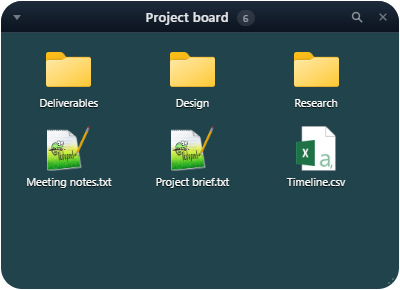
- Breadcrumb browsing: double-click a folder inside a portal to browse into it; the breadcrumb bar climbs back out. Drops land in the subfolder you are viewing. If it was deleted, renamed or became unavailable, the drop is refused and the files stay where they were. Reopen the intended folder before retrying.
- The Show thumbnails toggle (Personalize picket… → Labels) is a portal's alone — a portal mirrors an arbitrary folder, so whether to render real previews is a genuine per-folder choice. Icon size is not a setting anywhere: every picket draws at the desktop's own icon size. While Explorer's measurement is pending, the picket uses cached sizing or a temporary default and refreshes when it arrives, if that changes what it shows.
A successfully read folder with no visible entries says This folder is empty. Folder unavailable means the folder could not be reached; Access denied means Windows refused the read. Listing incomplete keeps readable entries visible and warns that more may exist. Not used on this PC yet means the portal came with a configuration kept in another folder and this PC has not read its folder at all: Allow on this PC… shows the folder in a warning box first (see Pages & sync). These states apply inside subfolders too and never remove your portal or its saved records. Retry rereads the folder without using the listing cache; Reading folder… appears while it waits. Open location opens the current folder in Windows, or reports that it cannot be opened. The notice scrolls in short pickets so its actions remain reachable. Successful listings can normally be cached for up to ten seconds; failed and partial reads are retried.
Smart pickets
A smart picket shows the live results of a search query. Create one from
a preset, or save any search with the ★ button. The
filtering search flags work —
-t png -d 7 makes “screenshots from this week”.
Both the tray and the picket menu offer the same six presets: Images · Documents · Archives · Screenshots · New or changed today · New or changed this week.
Every preset is an ordinary query you could have typed, so the picket it
creates can be edited afterwards like any other — there is no separate
preset mechanism to get stuck behind. Like every smart picket, a preset
shows what is on your desktop: “Screenshots” means the
screenshots sitting on your desktop, not the ones filed away in
Pictures\Screenshots.
Smart pickets always show your desktop
A smart picket is a view of the desktop itself — the same surface a regular picket covers, chosen by query instead of by hand. So three flags are deliberately not honoured here, even though they all work in the search bar:
-g(global) is ignored. It used to pull in files from anywhere indexed.-r(recursive) is ignored. It used to reach into desktop subfolders.-c(content) is ignored. A smart picket matches on names, types and age; it does not read inside files.
The first two surfaced items the user has never seen on their desktop and
cannot act on there — a .ts file buried in a project folder
turning up in a “screenshots” picket. Saving a query with
★ strips all three from what gets stored, so the
picket's label matches what actually runs; the built-in presets carry
none to begin with, and an older picket that still holds one simply
ignores it.
A smart picket needs at least one real filter: a search term,
-t or -d. A query that is only those three
flags — -g typed to widen a search, say — or a bare
-e (an empty pattern matches every name) is refused with
a toast rather than saved, because it would list and hide every icon
on your desktop. A picket an older version already saved that way
shows nothing and hides nothing.
The filters that do apply are the ones that describe files
rather than places: search terms, -t (types),
-d (days) and -e (regex). Results are capped at
1,000 items — the same display cap every
picket has — and a query that matches more says so in a footer
(“Showing 1–1,000 of 1,432”) instead of trailing off silently. A
smart picket is the one kind that does not page past that: it hides
exactly the files it draws, so a second page would show its files in
the picket and on the desktop. Narrow the query instead.
A smart picket holds no assignments of its own — its contents are whatever the query returns. So dropping a file on it means “collect this one again”: if the file matches the query, the explicit placement that was keeping it out (filed into another picket, or freed onto the desktop) is cleared and the query lists it again. A file that does not match is refused by name, because nothing could make it show up there. Dragging in from the desktop and dragging in from another picket behave identically.
Action zones
An action zone processes every file dropped on it with a
pipeline — steps chained with |>:
| Step | Does |
|---|---|
zip | Compress each dropped file into
its own ZIP beside it (report.pdf →
report.pdf.zip, never overwriting an existing archive — it
becomes report.pdf (2).zip, even if another program creates
the name during the operation). The original file is left where it
is, so the rest of the pipeline acts on the ZIP. Any size works: a
file over 4 GiB, or within 64 MiB of it, is written in the ZIP64
format. |
datestamp | Prefix the filename with today's
date on your clock (YYYY-MM-DD). A file already
carrying today's date is left alone. A destination collision uses a numbered
name, including a file created during the move. |
move:<folder> | Move the file to a folder. A
folder on this computer is created without ceremony; a destination that
is not — a \\server\share, say — asks you to confirm first,
because it would send every dropped file off the machine. The folder
must be a full path such as D:\Archive: a bare
move:Archive would land in Picketdesk's own working
folder, so creating it is refused, and a zone that already has one
leaves each dropped file where it was. A link or
junction dropped onto a move: to another drive (or a
folder holding one) is refused and left where it is (move it by
hand): copying it would copy everything it points at. The zone's
toast counts it as not processed, and picket.log names
the file and why. |
toast:<msg> | Show a notification. |
<command with %f> | Run any shell command (a bare %f gets quotes of its own; inside quotes you wrote — "%f", "%f.bak", "--in=%f" — the path goes in as it is, so the quotes are never doubled);
%f is replaced with the file path. Created in Settings →
Custom action zones. Commands run with no console window,
and files are processed one at a time — a template that waits (an editor,
an interactive prompt) holds up the rest of the drop, and is never killed
for it. Use start "" <program> %f to launch something
without waiting. |
A shell step refuses a path containing % in the
filename or any parent folder, to prevent Windows from
expanding environment variables in the substituted path. Built-in
zip, datestamp, move: and
toast: steps support these names. The failure notification
reports the processed count and the reason, even when the template
contains a success toast. Earlier steps may already have run;
a later refusal does not undo them.
A file dragged out of a picket arrives hidden, as every picket file is. The zone makes it visible before the first step and keeps it visible until the last one has finished, so every step — your own commands included — works on an ordinary file; whatever is still in a picket afterwards is hidden again. If a file cannot be made visible right then (another program holding it), the zone skips it rather than run anything on a hidden file: it stays in its picket, and the notification says how many were skipped so you can simply drop them again in a moment.
Example — archive a dropped file and confirm:
zip |> move:D:\Archive |> toast:Archived!With your configuration kept in another folder (see
Pages & sync), anyone who can
write that folder could change a zone's steps. So there, a zone whose
steps include a shell command or a move: off this PC runs
only once this PC has approved exactly those steps: the first
drop shows a warning box listing every step in full
(No is the default and runs nothing; only a very long
zone title is shortened there), and a Yes is remembered until the
steps change. Zones you create on this PC are approved as you create
them.